Blog post
Insights
Email Countdown Timer: How It Works and When It Pays Off
You've built a sale email, added the discount, and left a space above the button for a ticking clock. Before you fill it, check what a customer will see when they open the email late, or after the offer has ended.
Think of a shop-window sale sign with a clock counting toward closing time. The deadline keeps approaching whether someone's standing in front of the window or walking past tomorrow.
An email countdown timer is a clock inside a message that displays the days, hours, minutes, or seconds remaining before an offer or event ends. Marketers use it to help a hesitant reader recognize that there's a limited opportunity to act.
Say a clothing store announces a weekend promotion. The product photographs explain what's available, the copy explains the discount, and the timer makes the remaining shopping window visible.
Common placements include:
This isn't an obscure design technique. In 2025, Litmus reported that countdown timers were the most-used email personalization tactic among surveyed marketers, used by 9% of respondents.
That adoption doesn't mean every email needs one. A replenishment reminder, product-care guide, or ordinary newsletter may have no deadline worth counting toward.
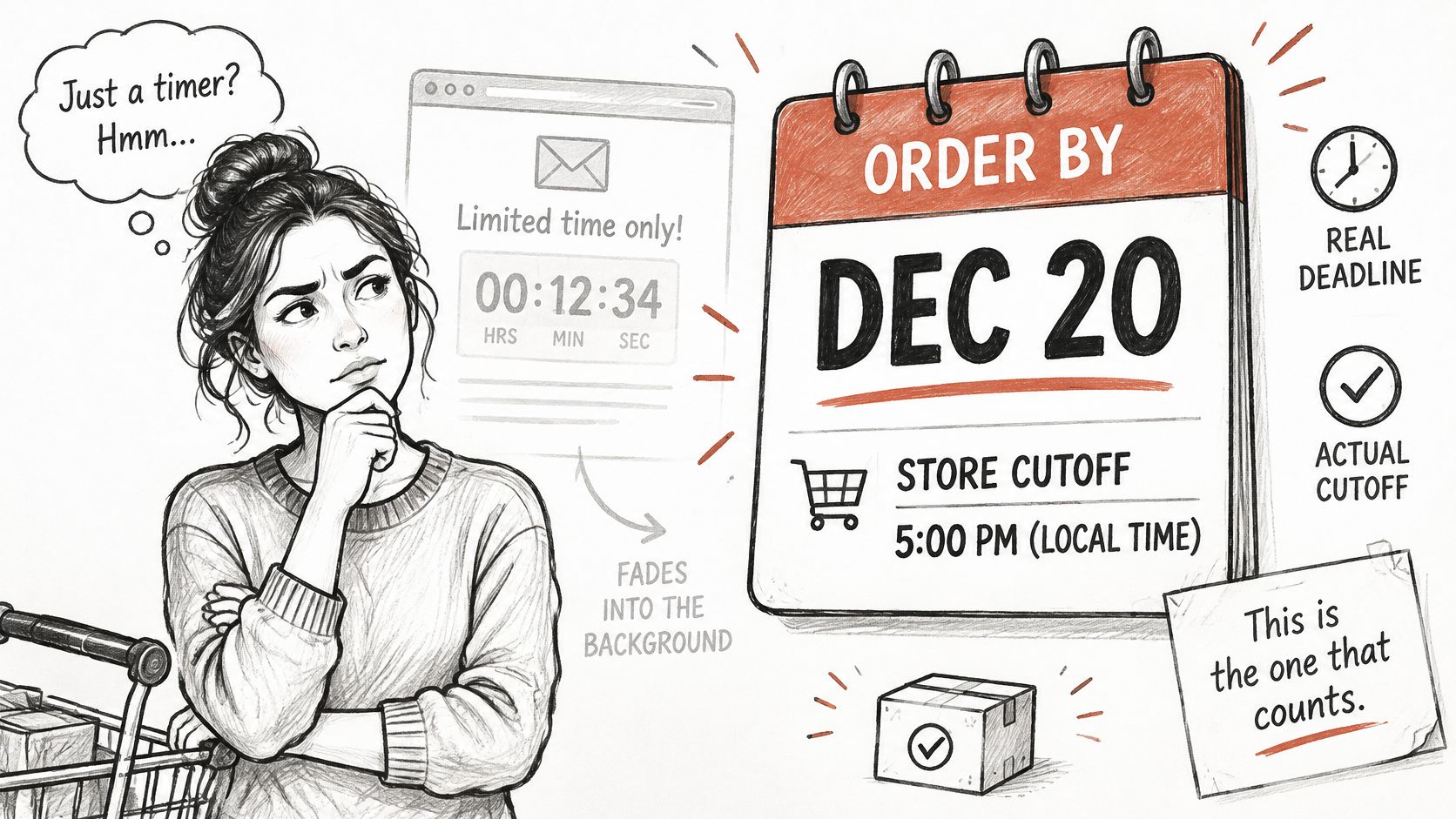
A timer and a deadline sentence do different jobs. The animation adds visual pressure; a sentence giving the exact closing date, time, and time zone explains the terms.
A reader shouldn't have to calculate the expiration from moving digits. They should understand the offer even if they ignore the clock entirely.
Your first action is to confirm a real end date. If nothing changes when the timer expires, you don't yet have a sound reason to add it.
The main build methods look similar in an email editor, but they handle time differently.
Email countdown timer types compared
| Timer type | How the time is set | Updates at open | Best use |
|---|---|---|---|
| Animated GIF, server-rendered | Remaining time calculated by the timer service when the image is requested | Yes, when freshly requested | Sale and promotion emails across most inboxes |
| Static image | A fixed countdown baked into the image at design time | No | Only when every recipient will open within a known window |
| Live HTML, CSS or JavaScript timer | Script or animation logic runs inside the email itself | Usually no, because most clients restrict active code | Rarely supported; avoid for critical deadlines |
| AMP dynamic email | Content refreshes inside the message | Yes, in supported environments | Supported inboxes only; always needs a standard HTML version |
| Text deadline | Exact date, time and time zone written as live text | Accurate at any open, but not visual | Universal fallback; pair with any image type |
A server-rendered animated GIF is the practical starting point for a promotional email. You configure the deadline in a timer service, then insert its hosted image or embed code into your email builder.
A static image is simpler to design, but its digits never change. Even within a known opening window, an absolute deadline is safer than a picture claiming a precise amount of time remains.
A live HTML, CSS or JavaScript timer attempts to perform the countdown inside the message. Ordinary HTML text is fine; executable timer logic is the unreliable part, so don't paste a website countdown script into an email and expect equivalent behavior.
AMP dynamic email supports richer updates, but it isn't a universal replacement for conventional email. Finally, a text deadline doesn't animate at all, which is precisely why it's the essential companion to the other methods.
Before choosing, ask:
For a drip email campaign, distinguish a shared sale deadline from an individual subscriber's eligibility window. Pick the method that matches that rule, not the design with the most dramatic digits.
Suppose you send a hypothetical sale email Monday morning at nine, with the promotion ending Wednesday morning at nine. A subscriber doesn't open it until late Tuesday evening, at eleven.
A freshly requested server-rendered timer would show about ten hours remaining, not the original forty-eight. A static image designed with the original duration would still display that original countdown.
The difference is when the image gets generated. Campaign Monitor's countdown timer guidance explains that these timers generally use server-rendered animated GIFs: the service calculates the remaining time when the email client requests the image.
A server-rendered timer displays the time remaining toward an existing deadline when its image is requested. It doesn't give each opener a new offer window.
The normal sequence is straightforward:
This timeline illustrates the hypothetical sale.
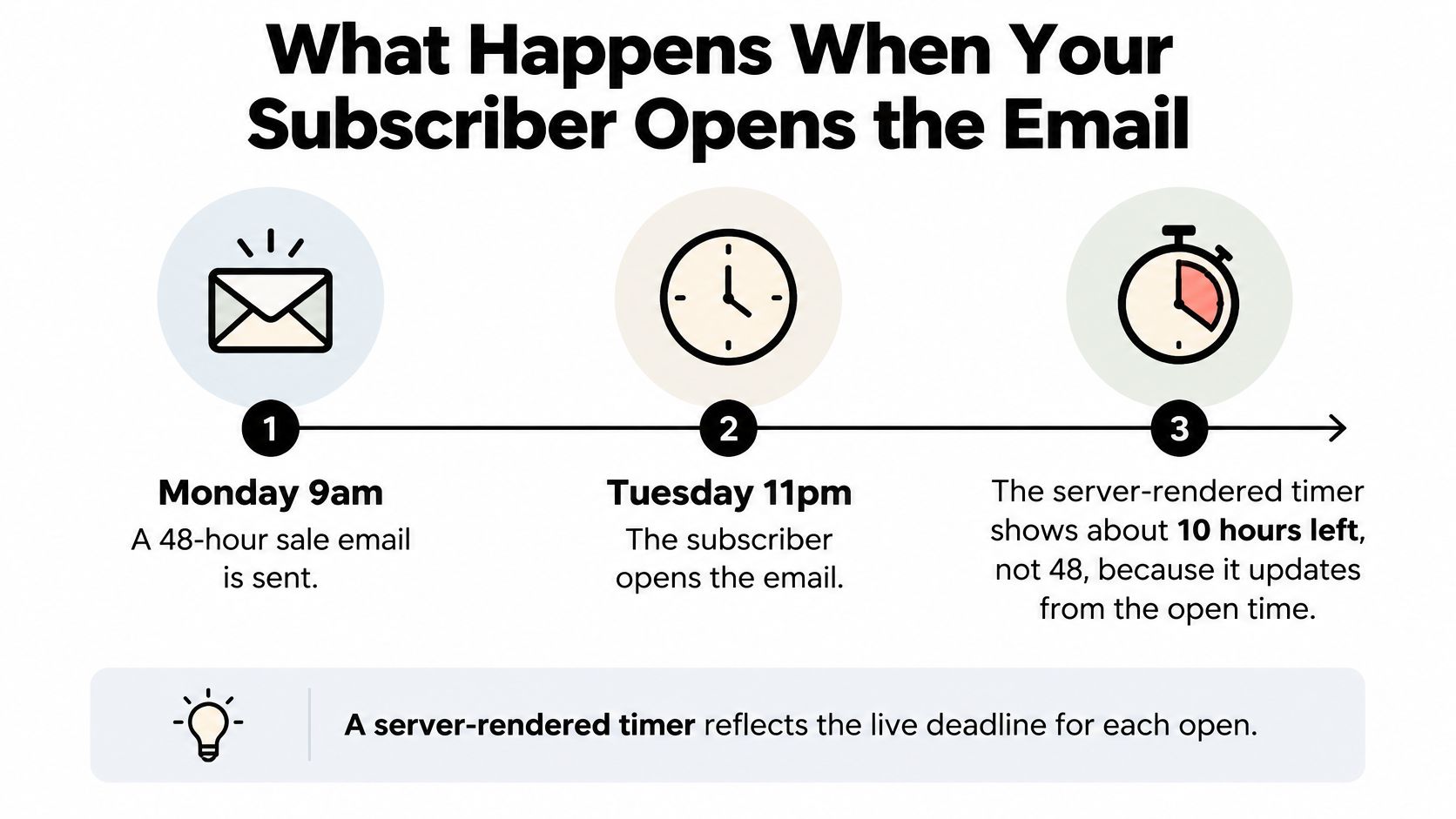
That distinction matters when someone forwards an email, opens a resend, or revisits an old promotion. The relevant question isn't when you sent the message, but whether the inbox makes a fresh image request.
There's also an important limit: opening the message and requesting the image aren't always the same event. Privacy features may fetch remote content earlier, while caching may prevent a fresh request later.
Don't confuse a fixed-deadline timer with an evergreen timer that starts an individual eligibility period. Those require different offer rules and persistent subscriber-level tracking.
Check your chosen tool's request behavior before sending. Use the fallback guidance below, then apply setup steps three and six so an imperfect image request doesn't make the deadline incomprehensible.
A timer that appears frozen in classic Outlook isn't necessarily configured incorrectly. The inbox may only display the animation's first frame rather than play it.
Because the clock is usually a remote image, image blocking, caching, and privacy prefetching can also affect what appears. Leave Me Alone's dynamic email guide describes these reliability limits and the need for conventional fallbacks, including for AMP content.
Inbox behaviour and the fallback to use
| Inbox or client | What the timer does | Fallback to use |
|---|---|---|
| Gmail | Animated GIF usually plays as intended | Exact date, time and time zone in live text beside the image |
| Apple Mail with Mail Privacy Protection | Image may be fetched before opening, so the displayed time can be wrong | Live text deadline and a CTA that works without the image |
| Classic Outlook for Windows | May show only the first GIF frame, so the timer looks static | Live text deadline beside the image |
| Mobile mail apps | Playback and loading differ by app; images may require permission | Text deadline visible without images |
| Image-blocking clients | Timer does not appear | Descriptive alt text stating the actual expiration, plus live deadline text |
| AMP-enabled inboxes | Dynamic content can refresh | Standard HTML version for other clients |
The timer should be helpful, never required. Build the offer, deadline, and call to action as readable email content, then add the animation as reinforcement.
For accessibility, use alternative text that identifies the actual expiration rather than merely describing a countdown graphic. Keep that same information in visible text because alternative text display also differs between inboxes.
A clear image fallback isn't the only requirement. Prospeo's last-chance email guidance highlights the late-opener problem and recommends a fallback message or alternate call to action after the offer expires.
Send a seed email to Gmail, Apple Mail with privacy protection enabled, a mobile mail app, and classic Outlook. Also inspect an image-blocked view.
Compare the displayed remaining time with the actual deadline, then reopen the message and follow its button. Record whether the animation plays, whether the deadline is understandable without it, and whether the destination still matches the promise.
Don't approve the campaign just because the preview in Klaviyo or Mailchimp looks correct. Approve the experience a recipient can use.
Suppose a subscriber forwards a flash-sale email after the sale has finished. The recipient opens it to a clock stuck at zero above a button leading to an unavailable product.
The countdown may have worked perfectly during the promotion. The recipient still encounters an unhelpful message, and they can't tell whether the offer expired honestly or the email is broken.
Choose an after-zero state alongside the active promotion:
Don't continue the identical discount after claiming it ended. In a 2023 ACM study involving 245 participants, deceptive timers whose offers continued after expiration increased perceived fear of missing out and prompted descriptions such as manipulative, immoral, or unethical.
Expired-state rule: Help the late reader take a useful next step without pretending the original opportunity still exists.
The landing page must agree with the email about the deadline, price, and product availability. Test the expired image and destination before launch, including what happens to a customer who clicks shortly before expiration but reaches checkout afterward.
Keep commercial terms equally clear. For retailers reviewing checkout infrastructure, UI Lib's comparison of buy-once POS versus subscription software is a separate resource for evaluating software payment models; it shouldn't be confused with a promotional deadline.
The expired experience doesn't need to recreate the sale. It needs to explain what changed and leave the customer somewhere useful.
Go if you can enforce the deadline, explain it without animation, and provide a useful expired destination. No-go if the deadline resets without a genuine eligibility rule, or if you haven't decided what happens afterward.
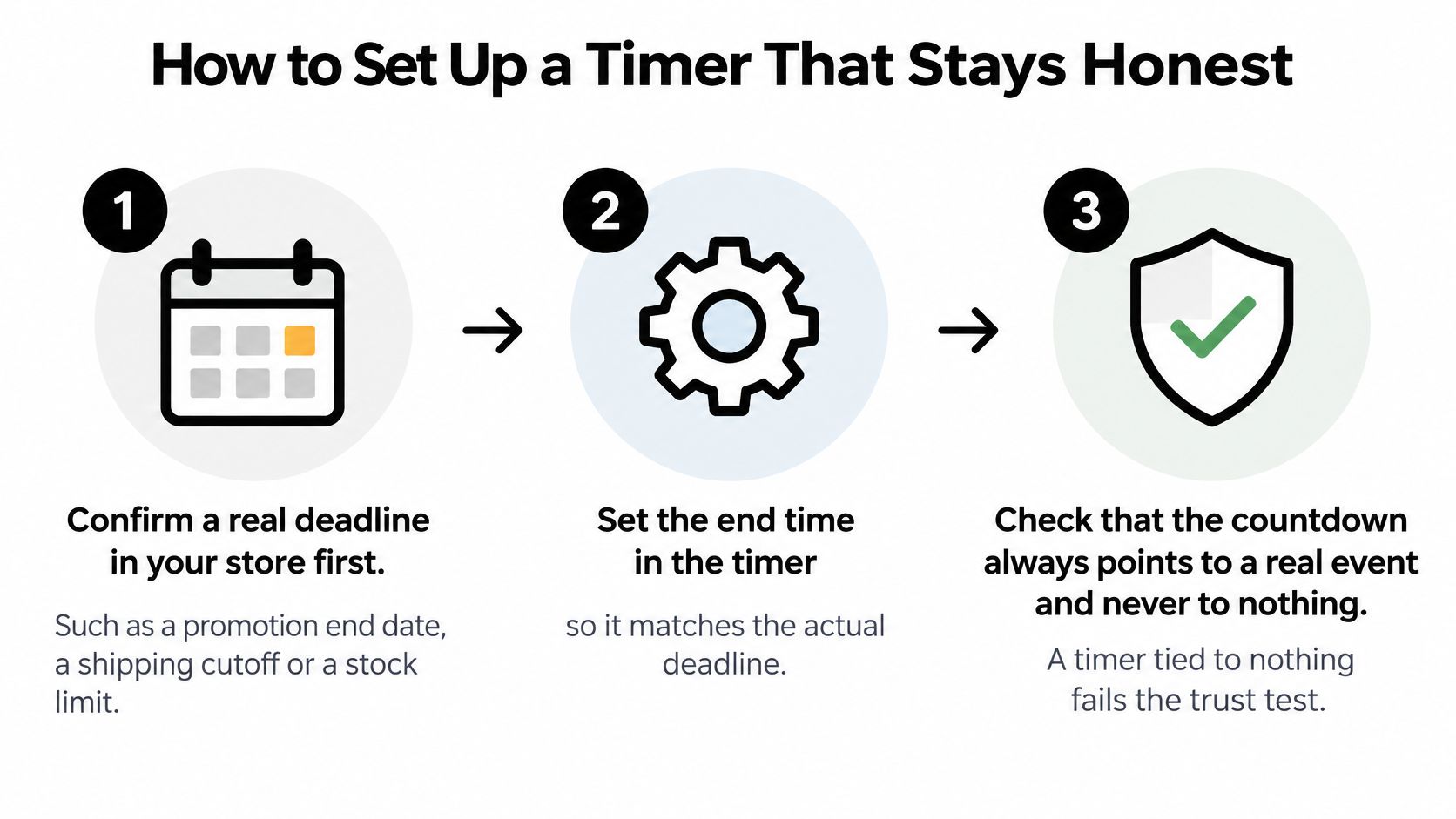
Confirm a real deadline in your store first. Configure the promotion end or shipping cutoff before creating its visual countdown. For inventory-limited offers, don't imply a guaranteed duration if the stock may run out sooner.
Set the end time and time zone. Enter the same deadline in the timer tool and store promotion settings, checking how each system interprets the selected zone. A clock can look convincing while counting toward the wrong instant.
Add a live text deadline beside the image. Write the expiration date, time, and named time zone in a normal text block, then give the image descriptive alternative text. This preserves the essential information when animation or image loading fails.
Define the after-zero state before sending. Implement the appropriate option from What Late Openers See After the Timer Hits Zero, including its destination. Test expiration with a temporary test deadline rather than assuming the default zero display is acceptable.
Match the call to action to the landing page. Check the displayed price, offer eligibility, and stock status through checkout, not just on the product page. Remove contradictory banners or codes so customers don't receive competing promises.
Test the actual send. Follow the inbox test plan, including reopening and image-blocked checks. Use the delivered email rather than relying solely on your builder's preview.
Measure the business outcome. Compare incremental orders, revenue, repeat purchases, and unsubscribes with an otherwise equivalent version without the timer. Keep the offer, audience, and sending conditions aligned so you're testing the clock rather than several changes together.
The foundation is the same regardless of your email platform.
Use customer lifecycle phases to decide who should receive the reminder and who should be excluded after purchasing. Don't let a scheduled resend continue promoting an offer to someone who has already acted.
For broader sending hygiene, CIQRA's guidance to improve automated email practices offers context beyond the timer itself. Treat expiration checks, suppression rules, and relevant messaging as part of the automation, not finishing touches.
A 2021 peer-reviewed study by Jamie Luguri and Lior Jacob Strahilevitz, involving a census-weighted sample of 3,777 U.S. adults, found that generic countdown timers didn't significantly increase purchasing, as summarized in Pumper's limited-time offer analysis. That challenges the assumption that displaying a clock reliably generates additional orders.
The distinction to make is between a visual pressure cue and a useful deadline.
There are positive campaign reports. Zigpoll campaign data from 2024 cited by Omnisend found that emails containing countdown timers achieved up to a 20% improvement in overall conversion rates compared with emails without timers.
But engagement and orders can diverge. In Yespo's own 2025 email experiment, timer emails generated a 4.9% link-click rate versus 4.7% without timers, a 0.2-percentage-point difference, while purchases were the same in both groups.
These findings don't support a universal uplift promise. An appealing offer, a relevant audience, and a meaningful closing window can produce a different outcome from a generic clock attached to an ordinary promotion.
Define your email marketing conversion rate around the action that matters to the campaign. A registration campaign and a purchase campaign shouldn't be judged by the same downstream event, and a click isn't a completed order.
Use this video as a companion to your campaign review.
A 2024 consumer survey cited by CountHub found that 63% of shoppers said they would unsubscribe from a brand using fake-urgency tactics in countdown messaging. That's stated intent, not an observed unsubscribe rate, but it's a reason not to treat trust as an incidental concern.
For a Shopify retention program, a campaign's immediate sales aren't the entire outcome. You also need customers to believe the next shipping cutoff, discount deadline, and availability message.
Use a timer when:
Skip the timer when:
Test incremental revenue, completed orders, and repeat purchases against a comparable no-timer group. Review unsubscribes alongside those outcomes, and remember that a timer supports a real offer; it never replaces one.
We build custom email and SMS retention flows for ecommerce brands, including a Custom Welcome Flow delivered in 5 days. Our email templates can be exported to any email marketing software, including Klaviyo, Mailchimp, and ActiveCampaign. Visit Class A Media to explore a welcome flow or template approach that fits your offers and customer journey.
Let's build retention system that drive predictable, scalable revenue - without ad spend, without retainers, without guesswork.


The Ultimate Ecommerce Email Marketing Agency
Get in touch: hello@classamedia.com